
How to prepare sheet music for a performance?
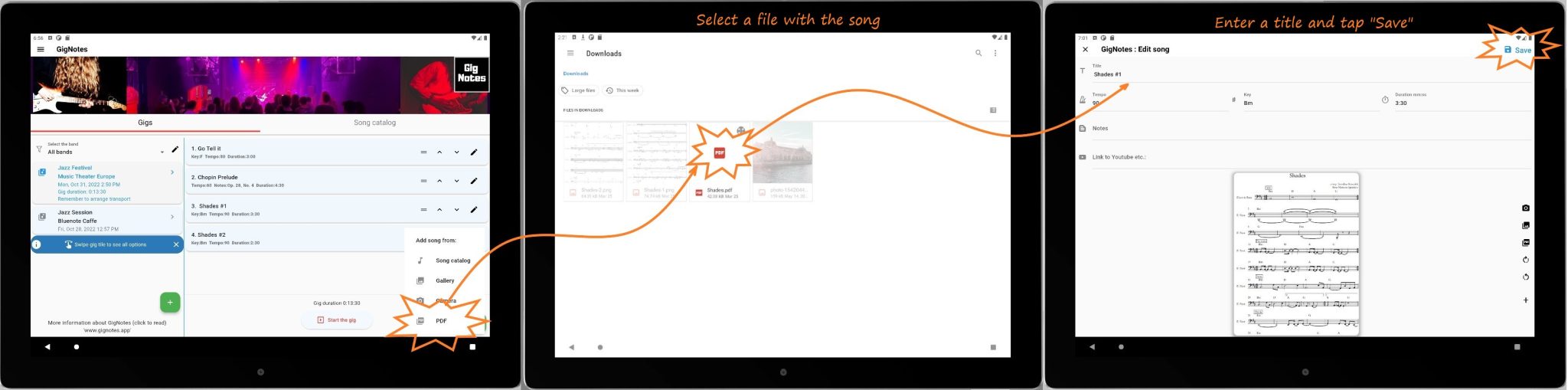
- Create new gig (tap on green “+” button)
- Add a song from the camera or from the gallery or from a PDF file
- Enter a title
- Tap on the Save button
- Repeat adding more notes
How to start viewing sheet music for a performance
- Tap on the gig tile or swipe gig tile left and tap the option “Start”.
- You will be in the “performance mode”. On the tablets on the left you can see the song list, on the right you see the notes of the selected song. This is very useful because you are in control of the performance, you know which song you are currently playing and what songs are next.
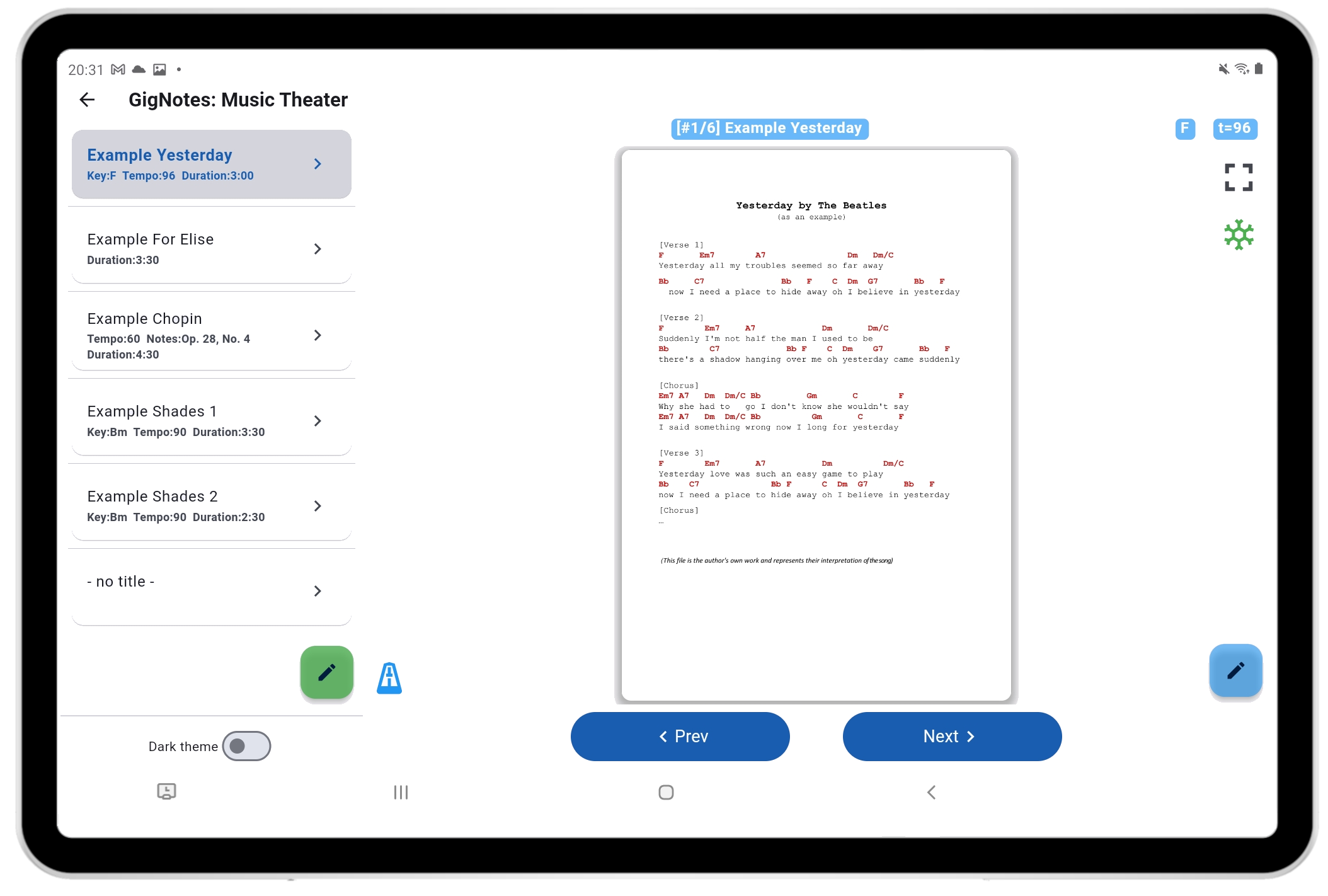
Hint! If the notes are too small you can click on button “full screen mode” (right upper corner), so app will switch to full screen (see below). You can use also zoom in and zoom out screen.
How to change the order of the setlist
- For tables:
- Tap on the gig
- On the right, you will see a list of songs
- Tap on the arrow UP or DOWN to move the song or or hold the tile of the song and swipe up or down
- For Smartphones:
- Tap on the gig
- Swipe left
- Tap on the option: “Edit setlist” -> you will see a list of songs
- Tap on the arrow UP or DOWN to move the song or or hold the tile of the song and swipe up or down
How to start drawing on sheet music with a stylus
Stylus drawing is available in full screen preview mode.
- Start viewing sheet music for a performance (start the gig)
- Select the song
- Tap on full screen icon . Now you should be in Full Screen Mode

- Tap on “Stylus” icon

- Use the stylus toolbar on the right side of the screen

How to share music notes in the band?
The person responsible for preparing the music notes for a particular performance takes photos or imports files with the notes into the app. The notes can include comments such as the title, tempo, key, and additional descriptions or remarks. The pieces of music are then arranged in a specific order for the performance, forming a setlist. Once prepared, the setlist with the music notes can be easily sent to other GigNotes users.
Procedure for sending the setlist to another user:
- Tap the gig tile and slide it to the right with your finger.
- Tap on option Share
- Enter the email of the GigNotes user
- Tap on the Send button
How Half-Page Turns and Smart Page Turning Work in GigNotes
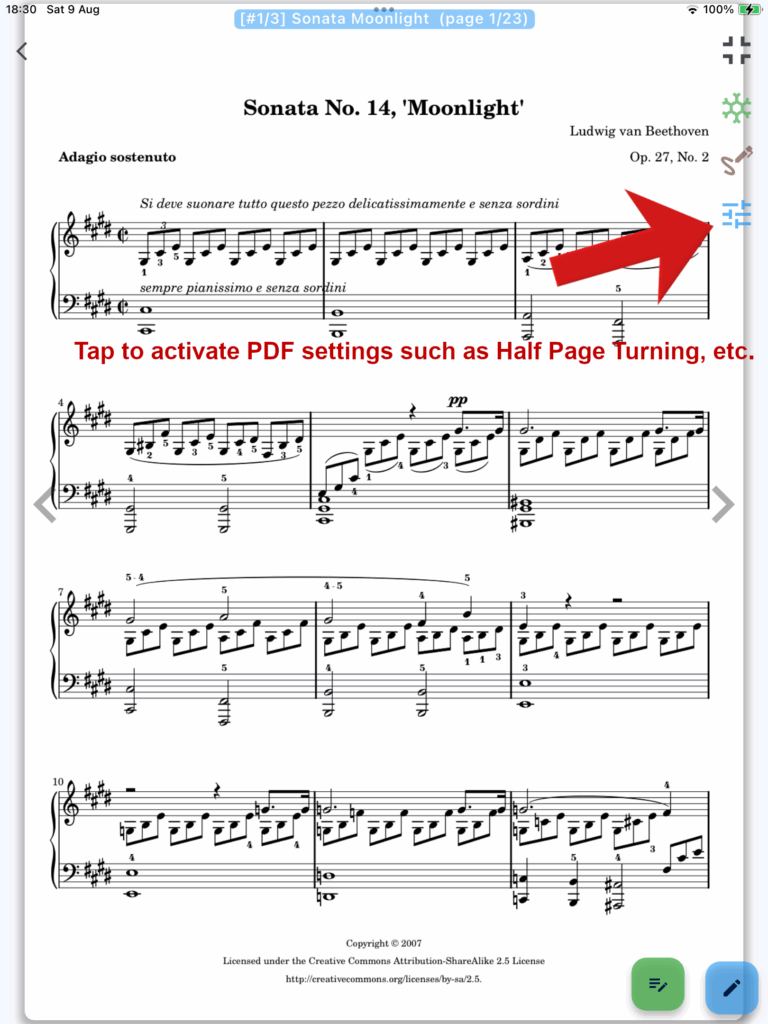
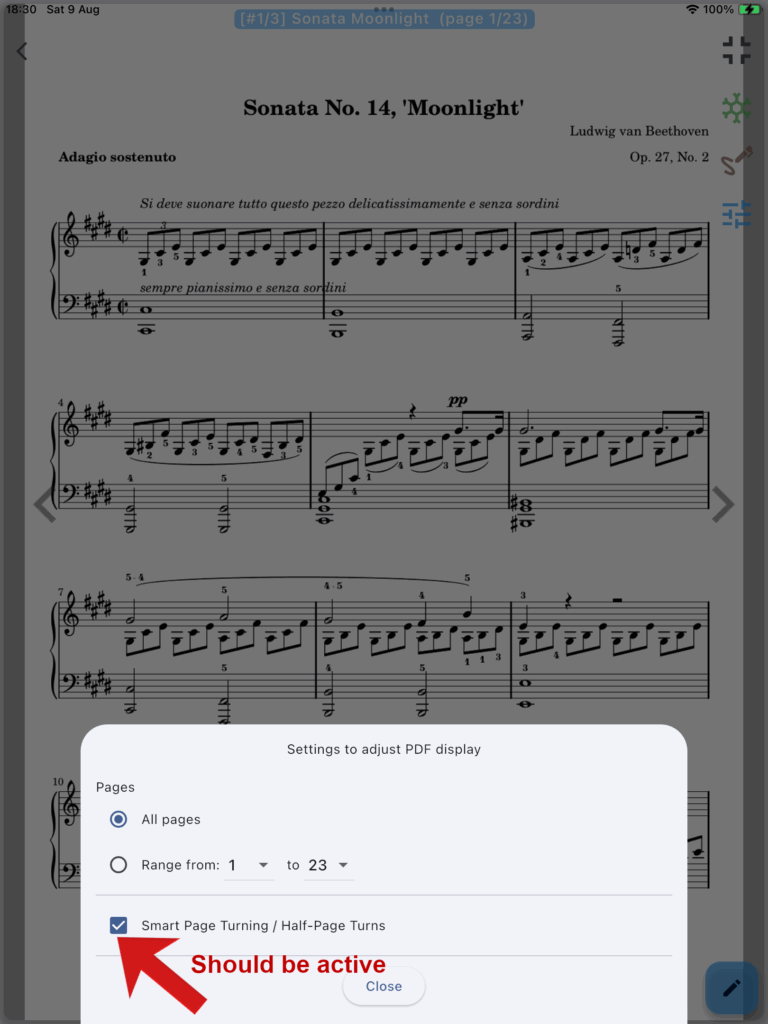
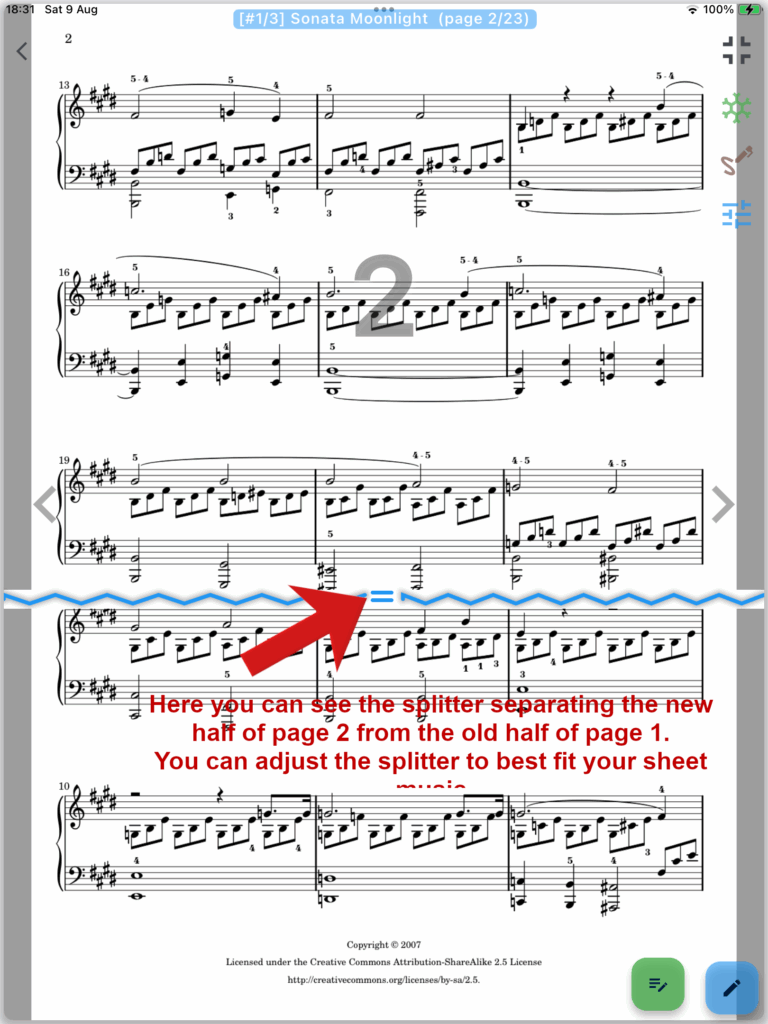
The Half-Page Turns feature is available for PDF files and allows you to turn pages by half, making it easier to follow your sheet music smoothly without losing your place. In portrait mode, pages flip in halves, so you see a seamless transition between the current and next parts of your music. In landscape mode, where two pages are shown side by side, this feature is called Smart Page Turning in GigNotes. It alternates pages to keep your view consistent — for example, showing pages 1 and 2, then 3 and 2, then 3 and 4, and so on.
When to Use Half-Page Turns
This option is especially helpful for classical musicians or anyone reading detailed sheet music during live performances. It reduces the distraction of full page turns and helps maintain continuous sight of your music, so you can focus on playing without interruptions.
Try enabling Half-Page Turns when working with long PDF scores or when you want a smoother page-turning experience during gigs.
“Enabling Smart Page Turning – Half-Page Turns Option”
Can I lower the volume of the metronome in the app?
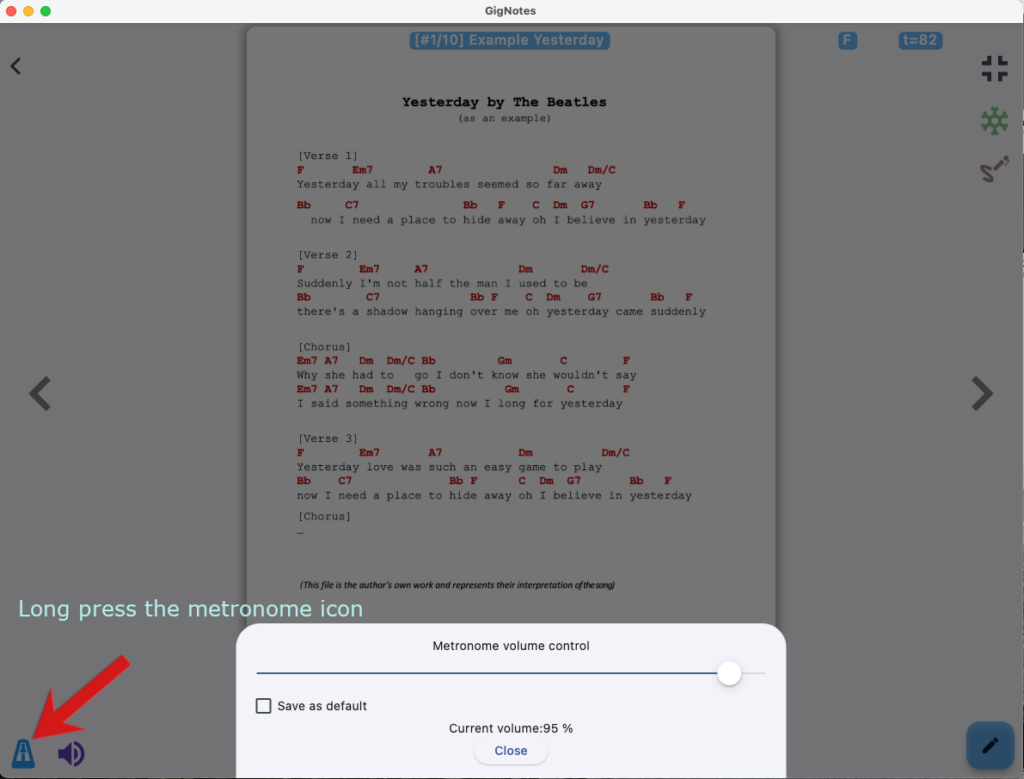
Yes, of course. Just press and hold the metronome icon for a longer time. A volume adjustment window will appear. See the image below.
Can I use Bluetooth pedals
Yes. The GigNotes app is compatible with most Bluetooth pedals (e.g., AirTurn).
The app recognizes the following key inputs:
Right Arrow, Down Arrow, or Page Down — next song or page
Left Arrow, Up Arrow, or Page Up — previous song or page

For AirTurn pedals please select mode 2 or 3
Issue: Buttons are not working at all.
Cause: The AirTurn Manager may be running in the background and intercepting button inputs.
Solution: Completely close or exit the AirTurn Manager, or uninstall it if necessary.
Can I use a Bluetooth pedal to turn the metronome on and off?
Yes, you can use a Bluetooth pedal to start and stop the metronome.
To set this up:
- Open the menu → Settings in the GigNotes app.
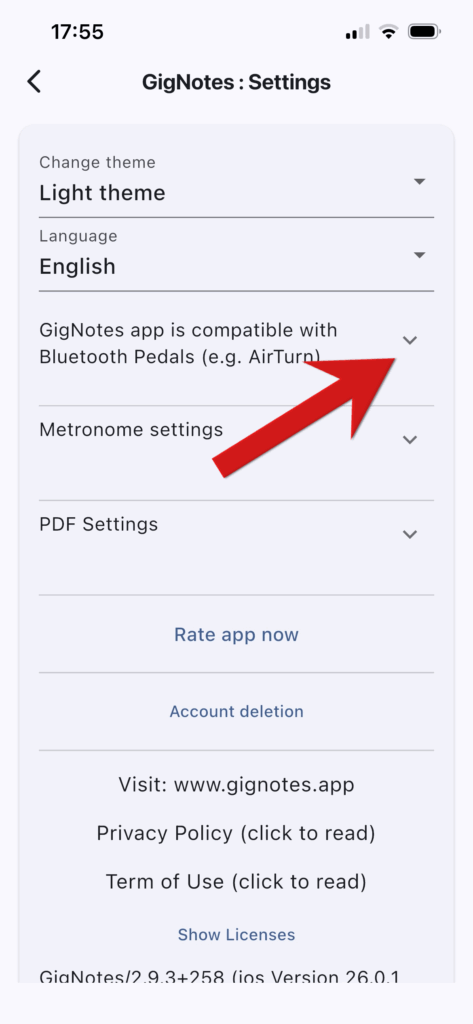
- Expand the section “GigNotes app is compatible with Bluetooth pedals” (see the image).
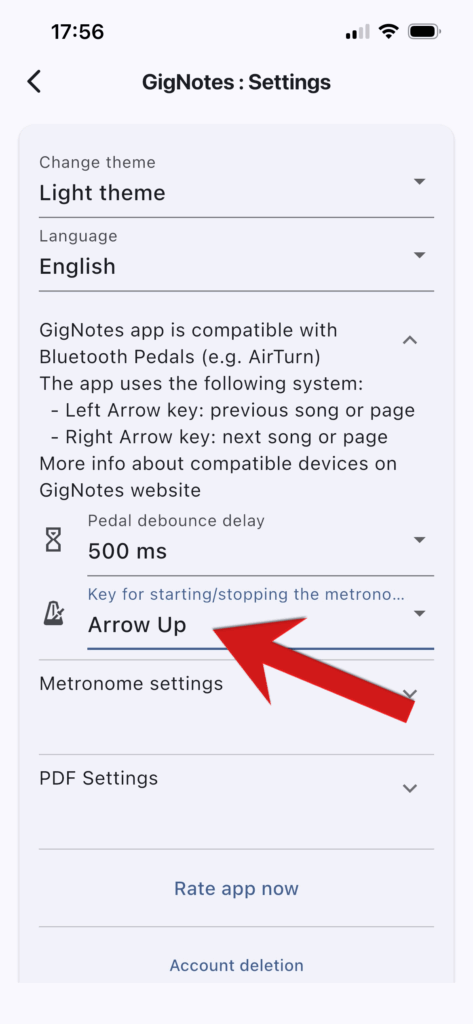
- In the field “Key for starting/stopping the metronome,” choose the key that matches your pedal’s configuration.
Check your pedal’s documentation to find which key it sends (for example, Arrow Up) and select the corresponding key in GigNotes.
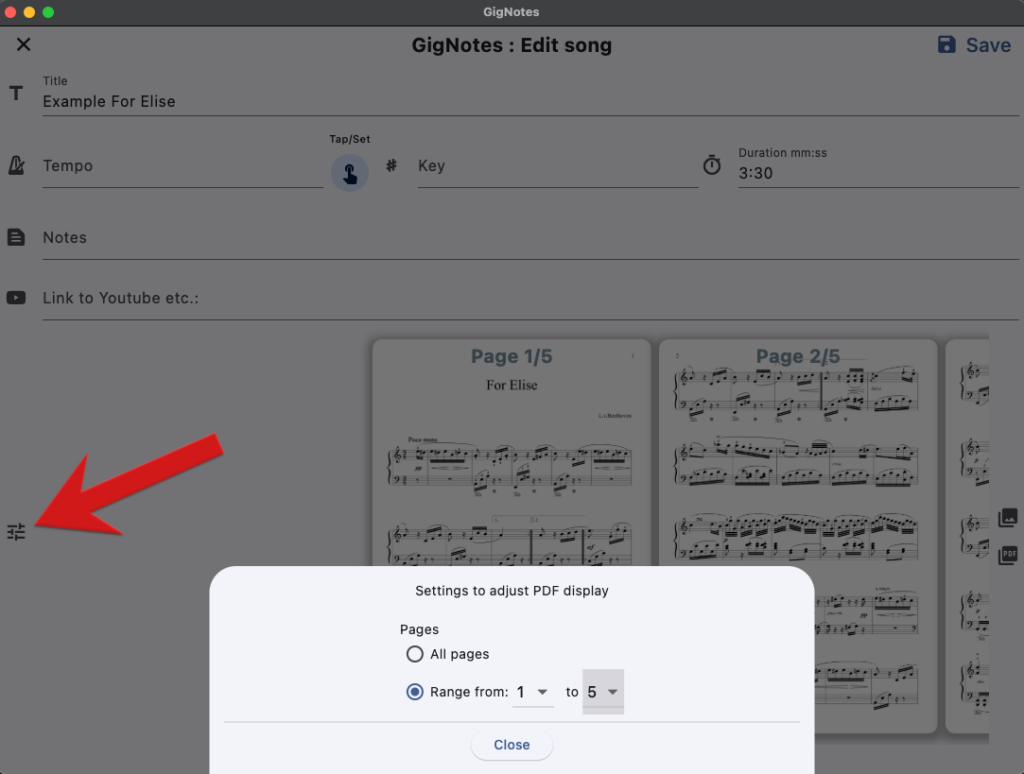
Sometimes I receive a large PDF file with sheet music for an entire song (e.g., 20 pages), but we only play a part of the piece, such as the first 4 pages. Is it possible to select the pages from the PDF that should be displayed while showing the sheet music for this song?
Yes, of course, there is an option to select the pages to display the sheet music from the PDF. You need to go into the song editing (Edit menu), and then in the lower-left corner, you will find a button for PDF settings. Tap on it and then select the range of pages to display. Don’t forget to press the Save button afterwards.
Is it possible to import multiple PDFs at once?
Yes, of course — you can import multiple PDF files at the same time.
Simply select several files during the import process. This feature is especially useful when switching from another app to GigNotes or when you want to quickly create a new Gig and already have the sheet music for your songs in PDF format.
When importing, GigNotes automatically generates a song title by combining the file name with the first line of text extracted from the PDF.
If you prefer a different way of setting song titles — no problem!
Go to Menu → Settings → PDF Import & Display Settings, and choose one of the following options:
- Use Filename and Text from PDF
- Use Filename only
- Use Text from PDF only
- Use Empty title
Description of ChordPro format support in the GigNotes app
Starting from version 2.0.0, GigNotes allows importing songs (lyrics and chords) in the ChordPro text format.
The ChordPro standard is highly comprehensive. Currently, GigNotes supports most commands and special characters. Below is a list of directive supported by GigNotes, some of which are ONLY supported during import:
| Long version | Short version | |
| start_of_chorus | soc | |
| end_of_chorus | eoc | |
| start_of_verse | sov | |
| end_of_verse | eov | |
| start_of_bridge | sob | |
| end_of_bridge | eob | |
| start_of_tab | sot | |
| end_of_tab | eot | |
| start_of_grid | sog | |
| end_of_grid | eog | |
| chorus | – | |
| title | t | only during import |
| sorttitle | ignored | |
| subtitle | st | ignored |
| artist | ignored | |
| composer | ignored | |
| lyricist | ignored | |
| copyright | ignored | |
| album | ignored | |
| year | ignored | |
| key | only during import | |
| time | only during import | |
| tempo | only during import | |
| metronome | only during import | |
| duration | only during import | |
| capo | ignored | |
| comment | c | |
| comment_italic | ci | |
| comment_box | cb | ignored |
| highlight | ||
| # |
A brief overview of how the ChordPro file format is structured.
The ChordPro file format is a simple text format that can be created and edited using any text editor or word processor. These files can have arbitrary names and extensions. Common file extensions for ChordPro files include .cho, .crd, .chopro, .chord, and .pro.
This is an example of a simple song:
{title: Example Song 1}
{subtitle: Guided by Light}
# A simple ChordPro song
{time: 3:17}

Chorus
{start_of_chorus}
[C]Waking up to [G]the light,
[D]Chasing dreams [F]in the night,
[C]Wandering hearts [F7]full of grace,
[C]Finding peace [F]in this place.
{end_of_chorus}

Verse 1
[Am]The stars are [Dm]shining bright,
[G]Whispers soft in the night,
[Am]Lost in thoughts, [Dm]we roam,
[G]Together, we’re never alone.

{comment: This is a sample song for GigNotes.}
{comment: Lyrics and music are the property of Studio Accent,}
{comment: the producer of the GigNotes app.}
As you can see, the lyrics of the song are interspersed with chords written between brackets [and ]. The chords are placed in front of the syllable they belong to. In the printed output the chords will be printed on top of the syllable.
Besides lyrics with chords, the ChordPro file contains directives, lines that start with { and end with }.
All lines that start with a # are ignored. These can be used to insert remarks into the ChordPro file that are only relevant for maintainers.
GigNotes displays this song as follows::
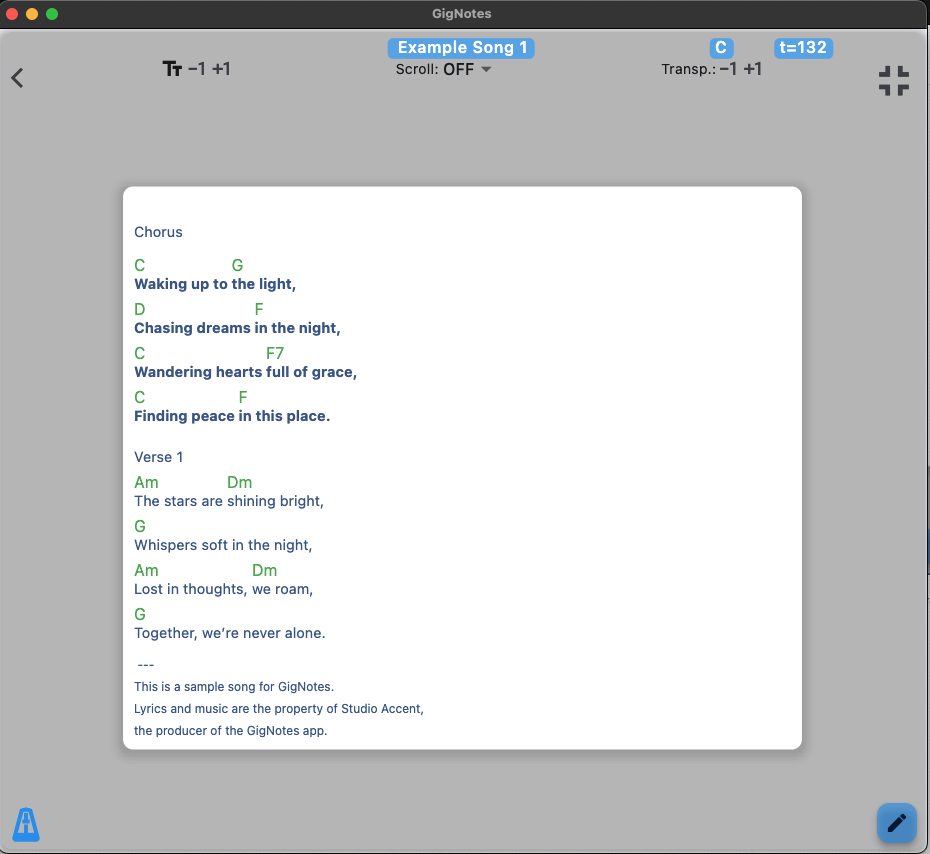
Note: Handwritten notes are not available for songs using the ChordPro format. For necessary notes, please enter them directly into the song text.
Learn more about the ChordPro standard at: https://www.chordpro.org/chordpro/chordpro-introduction“
What is the maximum PDF file size I can import into GigNotes?
Currently, GigNotes supports importing PDF files up to 20 GB in size. This limit is more than sufficient for even the largest songbooks, orchestral scores, or complete gig libraries. In practice, most musicians use much smaller files — usually just a few megabytes per song or setlist — so you should not encounter issues with typical sheet music.
Keep in mind that very large files may take longer to load or process, depending on the performance of your device. If you work with extremely large PDFs, we recommend splitting them into smaller sections (e.g., by song or by set) for faster navigation and a smoother experience during live performances.
What are the available PDF export options for a setlist?
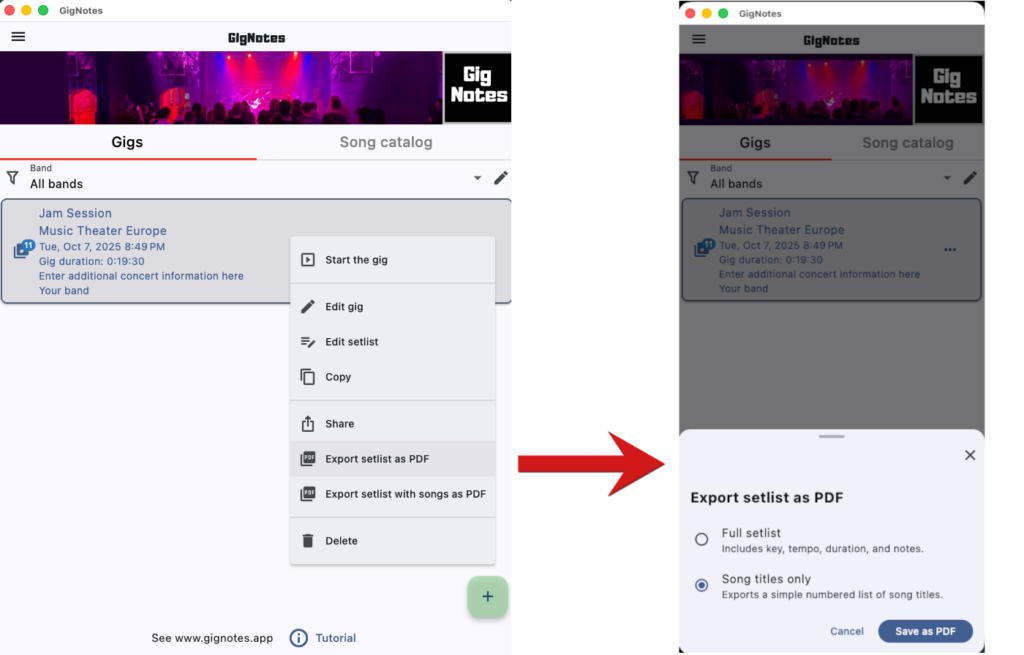
To access the export to PDF options, open the Gigs tab and tap the “…” (menu) button for the selected gig. Near the bottom of the menu, you’ll find the options:
- Export Setlist as PDF
- Export Setlist with Songs as PDF
These options allow you to create different types of PDF exports depending on your needs.
See the screenshot below for an example.
GigNotes offers three ways to export a setlist as a PDF:
1. Song Titles Only
Exports a simple numbered list of song titles. Ideal for sharing with band members, sound engineers, or venue staff.
Example:
Jam Session
Date: Tue, Oct 7, 2025 8:49 PM
Venue: Music Theater Europe

1. Let It Be
2. Angie
3. Wonderwall
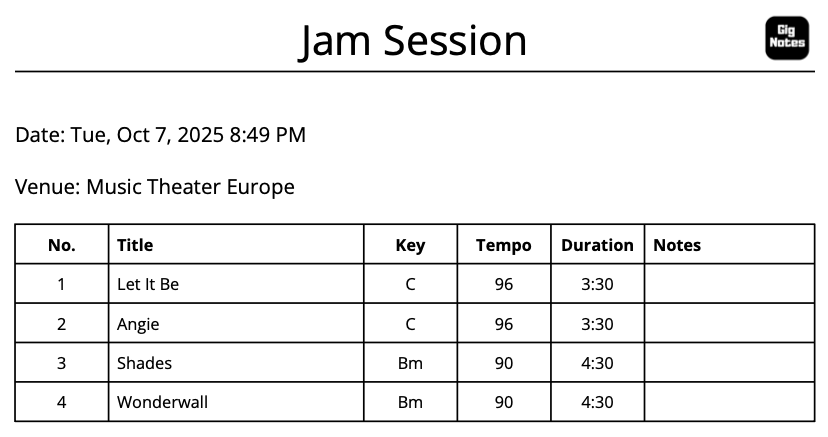
2. Setlist Summary
Exports the song list together with additional information such as Key, Tempo, Duration, and Notes. Useful when preparing for rehearsals or performances.
Example:
3. Full Setlist with Songs
Exports the complete setlist including all song charts, lyrics, PDFs, images, and annotations. Perfect for printing a full performance book or sharing it with other musicians.
MIDI: Can I send MIDI commands from GigNotes to my keyboard or other MIDI devices?
Yes. GigNotes allows you to send MIDI commands directly to your keyboard or other MIDI devices.
You can assign MIDI commands per song, making it easy to control external gear—such as changing sounds, presets, or settings—automatically during rehearsals and live gigs.
MIDI: How do I connect a MIDI device to GigNotes?
To connect a MIDI device to GigNotes, first connect your Bluetooth MIDI interface to your keyboard or other MIDI device. Make sure your device is powered on and that the MIDI interface is not connected to another phone or tablet. In most cases, you do not need to pair your MIDI interface with your phone or tablet, but please check your MIDI interface manual for details.
Next, open GigNotes, go to the song edit screen, tap the “MIDI” button, and enable the option “Enable MIDI for this song.” Wait a few seconds, then select your device from the list of available MIDI devices.
After that, you can assign MIDI commands to your songs and start controlling your device directly from GigNotes.
MIDI: How do I use MIDI in Simple / Standard mode in GigNotes?
After enabling MIDI with “Enable MIDI for this song”, select your device. In Standard/Simple mode, GigNotes sends a basic command to change the patch (voice) on your keyboard. This should work with most keyboards. Usually, it changes the Program or Bank. Check your instrument’s manual or experiment to see what works best.
Keep in mind that MIDI is a complex standard, and this functionality in GigNotes is currently experimental.
MIDI: How do I use MIDI in Advanced mode in GigNotes?
To use MIDI in Advanced mode in GigNotes, first enable MIDI for the song by tapping “Enable MIDI for this song”and select your device. In Advanced mode, you can assign specific MIDI commands to individual song parts, including Program Changes, Control Changes, Notes, and System Messages.
Using the advanced MIDI settings, GigNotes can control more than just changing patches. You can, for example, adjust volume, enable effects, and other parameters on your keyboard. For instance, on a Nord Stage 3, you can set a program for LIVE mode by sending the command: MSB: 6, LSB: 0, and in the program parameter, enter the Live number from 0 to 4.
Program Change Operations on Nord Stage 3 (as an example)
| Program | Song | Synth Preset | Live | |
| MSB (CC#0) | 0 | 1 | 2 | 6 |
| LSB (CC#32) | 0-3 | 0-3 | 0-3 | 0 |
| Program Change | 0-124 | 0-99 | 0-99 | 0-4 |
If you need to switch your Nord Stage 3 to Live 2 for a song, set in GigNotes: MSB: 6, LSB: 0, Program #: 1. Remember that Live programs are numbered from 0, so enter “1” for Live 2. The other controls should remain at their default values: Time Delay: 50, and leave SysEx and Control Change empty.
This feature allows you to have precise control over your MIDI device. Since MIDI is a complex standard, some experimentation or consulting your device’s manual may be necessary to achieve the desired results.
Keep in mind that MIDI is a complex standard, and this functionality in GigNotes is currently experimental.
Is subscription required to use the app?
A subscription is not required to use the app.
Without a subscription, you can create up to 2 gigs and save a maximum of 20 songs in the songbook.
A subscription is required to send a set of notes (called a “gig”) to other band members in GigNotes. Additionally, some features may be available only with a subscription, and their functionality could be somewhat limited.
Why should I pay for subscription?
We invite everyone to enjoy GigNotes without a subscription. Most features are available for free, including creating up to two Setlists (called Gigs), building a song catalog, and making handwritten notes or corrections on sheet music using a stylus.
For musicians who use GigNotes more professionally, online features like creating backups (to secure your sheet music) and sending Setlists to bandmates may be essential. Since these online services come with costs, we have chosen not to include advertisements in the app to help cover these expenses. Instead, we ask those who find GigNotes useful to support the project by purchasing a subscription.
We’ve set a minimal and symbolic subscription price, hoping it won’t be a burden while helping us continue developing the app for the future.
Thank you for your understanding and for supporting the GigNotes project.